Background
Tempo is a blazing fast new L1 built by Paradigm in collaboration with Stripe. The goal? Bring stablecoins on-chain at scale.
Not surprisingly, it gained tons of hype and attention when it was announced. But it also drew some flak:
- Many criticised that instead of building an L2 on top of Ethereum, Paradigm chose to build a separate L1
- This was viewed as "extracting" from the ecosystem rather than building on it
- Despite the controversy, they raised an absurd amount of money and attracted some of the top minds in crypto
But okay, enough of that. This blog isn't about L1 vs L2 debates—it's about how I reverse-engineered Tempo's sick UI to incorporate elements into my own portfolio website.
The Thing That Hooked Me
Check out this thing of beauty: tempo.xyz
I was mesmerized by the animation on the right side of their page. It shows streams of transaction hashes with strips of light flashing through—a perfect visual representation of a blockchain processing millions of transactions per second and handling massive volume.
But here's what really got me: when you scroll down, the animation is like flipping a page in a book. The way it embeds itself into the scroll, the buttery smoothness... I had to replicate this.
If you want to see the final result, the animation you're seeing on the right side of this page (on desktop) is my recreation!
Step 1: Inspecting the DOM
First thing I did was inspect the DOM.
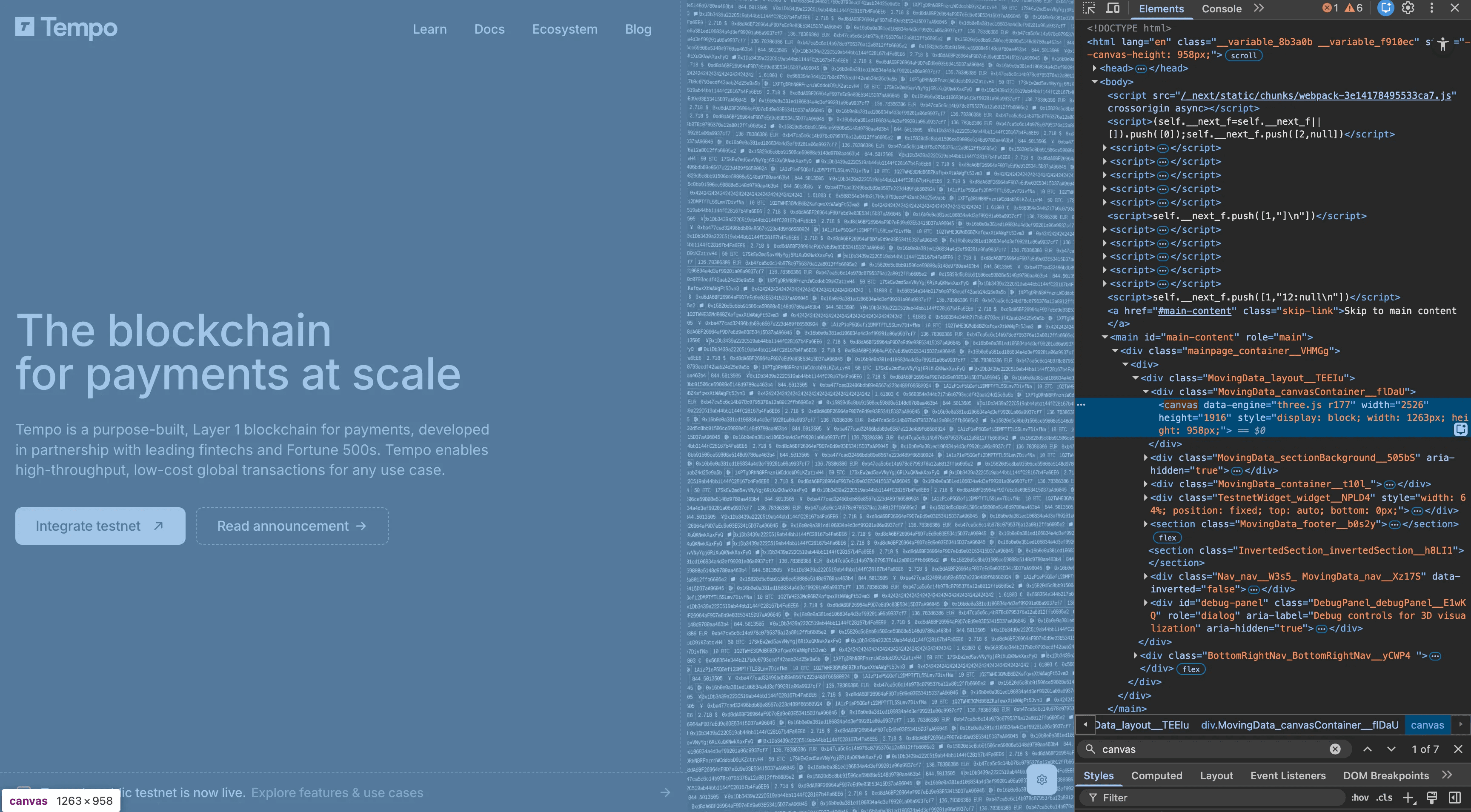
What I found:
- A single HTML
<canvas>element - The animation was being painted directly onto this canvas
- Three.js was being used (spotted
data-engine="three.js r177"as a field in the<canvas>element)
I quickly built a mental model of the layout:
<main>
  <div class="mainpage_container">
    <div class="MovingData_layout">
      <div class="canvasContainer">
        <canvas />
      </div>
      <div class="sectionBackground" />
      <div class="container"></div>
    </div>
  </div>
</main>
What I immediately understood:
- The canvas had fixed dimensions on the right side
- Main content was on the left side and scrolls normally
- I'd need to pass some scroll-related prop to control the animation
- The animation responds to scroll position
Step 2: Finding the Minified Bundle
Now came the fun part: finding the actual animation code.
After digging through the network tab, I found the JS chunk responsible for the animation:
0133708f-b0a17d406f11eed0.js?dpl=dpl_3EJFQgJXQjbTsBHnfbSSqqDiTTYPEven though it was heavily minified, I could spot WebGL method signatures:
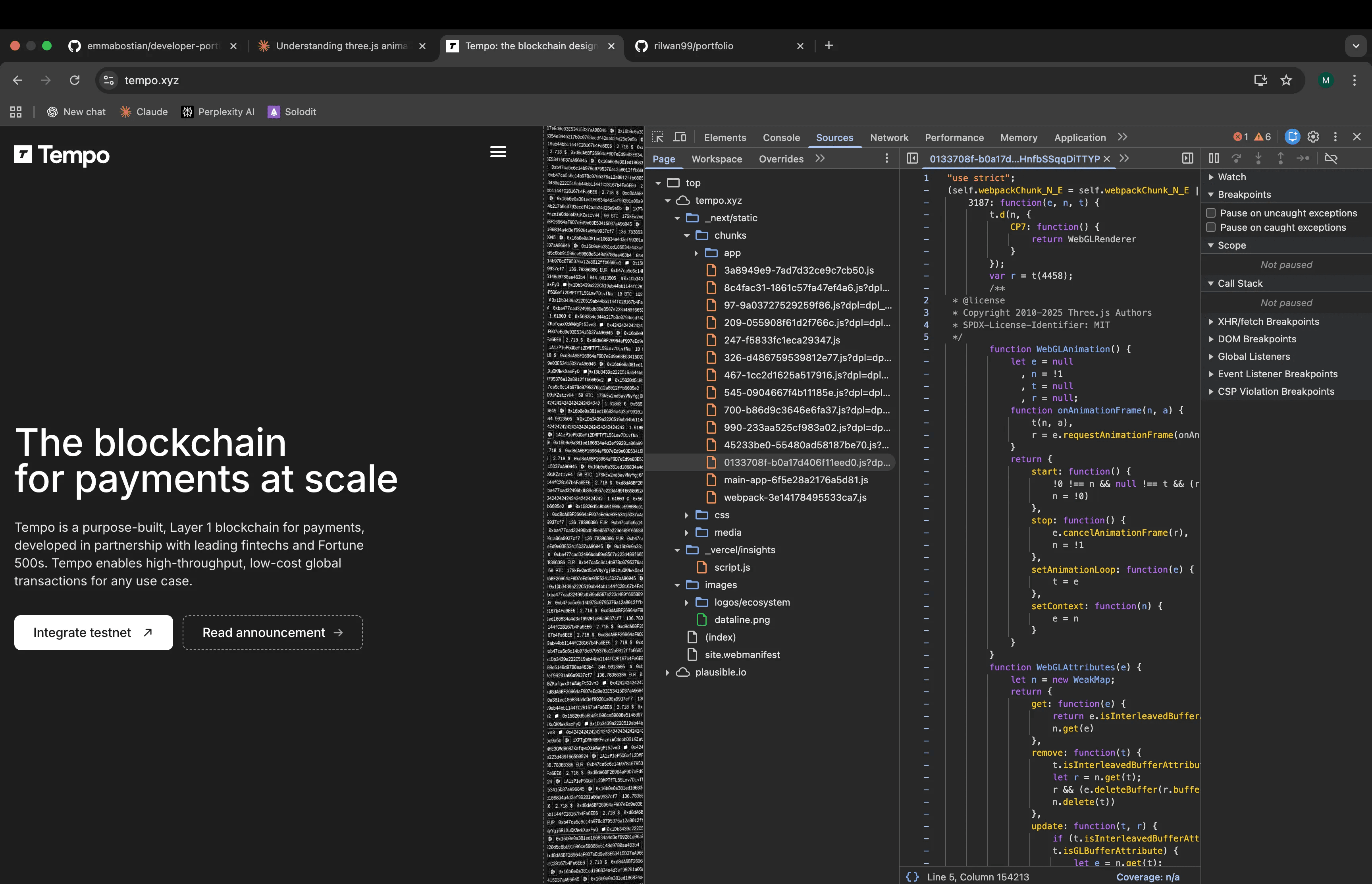
function WebGLAnimation()function WebGLAttributes()function WebGLBackground()
Bingo—hit the jackpot. This was definitely the Three.js rendering code.
Step 3: Making Sense of Minified Chaos
Reading minified code is a pain in the ass. It used to be super time-consuming and required deep domain knowledge and expertise. But that's a thing of the past. Now with AI, anyone can become an expert at analyzing minified code.
I pasted the bundle into Claude Code and asked it to explain the architecture. What I discovered:
The Geometry
They weren't using Three.js's standard BoxGeometry. Instead, they created custom thin rectangular boxes:
- Width: 4.4 units
- Height: 0.016666... (that's exactly 1/60)
- Depth: 0.016666... (also 1/60)
Why so thin? They're creating 120 of these stacked vertically to simulate planes. Each "plane" is essentially a 2D slice of a 3D volume. This stacking creates the volumetric effect you see.
The Shaders
The magic happens in custom GLSL shaders. I found two embedded in the bundle:
1. Vertex Shader: Handles dual directional lighting
float diffuse1 = max(dot(vNormal, normalize(uLightDirection)), 0.0);
vLightIntensity = diffuse1;

float diffuse2 = max(dot(vNormal, normalize(uLightDirection2)), 0.0);
vLightIntensity2 = diffuse2;
2. Fragment Shader: Does the heavy lifting
- Scrolling texture animation with per-row randomization
- A one-time reveal animation (right-to-left sweep)
- Film grain effect (10% intensity)
- Exponential fog for depth (4.0 density)
- Edge fading for smooth integration
The scrolling texture logic was particularly clever:
float randomSeed = random(uRowIndex);
float lineSpeed = mix(0.0005, 0.003, randomSeed);
textureUV.x = fract(textureUV.x + uTextureOffset * lineSpeed);
Each of the 120 planes scrolls at a different speed based on its row index. This creates the mesmerizing parallax effect.
The Color Scheme
Here's something brilliant I discovered—the animation reads colors from CSS custom properties:
const computedStyle = getComputedStyle(document.documentElement);
const backgroundColor = computedStyle
  .getPropertyValue("--backgroundColor")
  .trim();
const color = computedStyle.getPropertyValue("--color").trim();
This makes the animation theme-aware without any React prop drilling. Simple but effective.
Scroll Integration
The scroll effect does two things:
1. Individual mesh rotation based on scroll position:
mesh.rotation.y = -(scroll * rowIndex * 0.043);2. Group depth movement:
group.position.z = -(0.24 * scroll);The magic numbers (0.043 and 0.24) create just the right amount of movement without being overwhelming.
Step 4: Building My Version
I prompted Claude Code to create a step-by-step plan (protip: use planning mode for complex tasks like this).
What emerged was a 500 line React component that handles:
- Creating and positioning 120 thin box geometries
- Custom vertex and fragment shaders
- Texture loading with per-row scroll randomization
- Dual directional lighting
- Film grain and fog effects
- Scroll integration
- Proper resource cleanup on unmount
Performance Optimizations I Kept
The production code wasn't just working—it was optimized:
- Shared geometry: One geometry instance shared across all 120 meshes (saves memory)
- Material cloning: Each mesh needs independent uniforms but materials are cloned, not recreated
- Frame rate throttling: Targets 60 FPS but throttles if browser can't keep up
- Pixel ratio capping: Maxed at 2x to prevent unnecessary rendering on high-DPI displays
What I Changed
Mobile Rendering
One thing I didn't like: in the original, the right-side animation rendered even on mobile viewports. This felt redundant.
Mobile devices have greater resource constraints and less GPU power than laptops—this would definitely affect loading speed and battery life. So I completely removed the canvas rendering on mobile viewports.
The content reflows naturally, and users on mobile get a faster, smoother experience without the WebGL overhead.
The Satisfying Part
There's something deeply satisfying about reverse-engineering complex animations. It's like being a digital archaeologist, piecing together how something works from fragments and clues.
When I finally got my version running and it looked nearly identical to the production animation, I felt that special kind of developer joy. Not just because it worked, but because I understood why it worked.
Key Takeaways
1. Production code tells stories: Even minified, there are breadcrumbs everywhere—copyright notices, function signatures, numeric constants.
2. Custom shaders unlock creativity: The entire effect relies on custom GLSL. No amount of Three.js helper functions could create this exact look.
3. Performance matters from day one: Shared geometries, frame throttling, pixel ratio capping—every detail was considered in the original.
4. Theme integration is clever: Reading from CSS custom properties makes components theme-aware without complex state management.
5. Mobile-first means tough choices: Sometimes the best mobile experience means removing features entirely, not just scaling them down.
Try It Yourself
If you want to reverse-engineer production animations, here's my approach:
- Start with the obvious (library signatures, copyright notices)
- Work backwards from rendering output to input
- Extract constants (magic numbers reveal dimensions, timing, etc.)
- Rebuild incrementally—don't try to understand everything at once
- Compare obsessively (side-by-side reveals missing details)
Final Thoughts
Modern web development often involves using libraries without understanding their internals. Reverse-engineering forces you to understand not just what code does, but why it does it that way.
This project reminded me that behind every polished production website is a series of careful decisions: technical trade-offs, performance optimizations, and creative solutions to complex problems.
The next time you see a beautiful animation on the web, remember: you can just vibecode and recreate it. It just takes patience, curiosity, and a claude/AI-tool subscription to dig through minified code.
Written by a dev who spent way too much time analysing javascript bundles to debug production issues.